To allow Excel to run an integrated Excel workbook:
- Open Excel.
- Click the Microsoft Office button, and choose Excel Options.
- In the Excel Options dialog, choose the Trust Center tab, and then click Trust Center Settings.
-
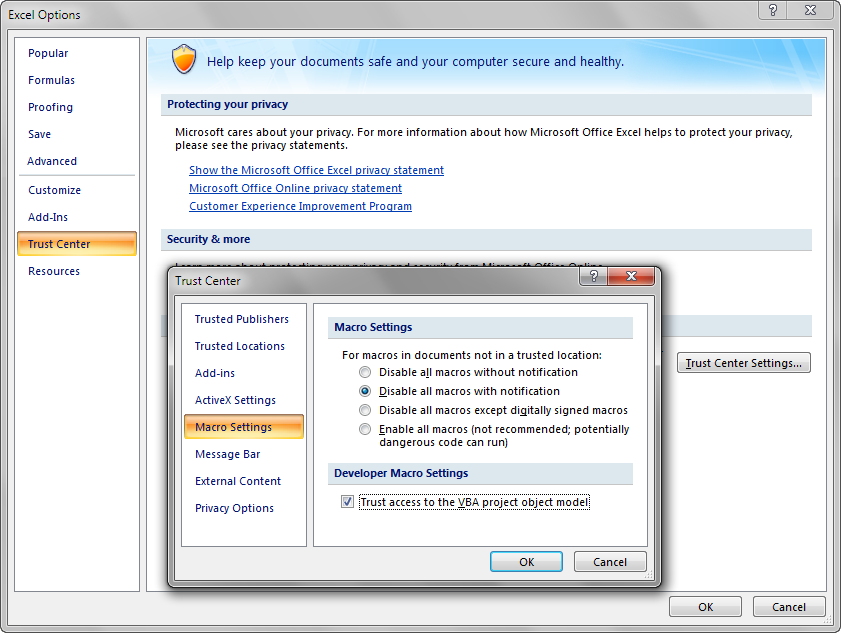
In the Trust Center dialog, choose the Macro Settings tab, and then click the Trust access to the VBA project object model checkbox, as shown in Figure.
Figure 3-1 Excel Trust Center Dialog
- Click OK. -------------------------------------
To install the Designer edition of ADF Desktop Integration:
- Open JDeveloper.
- From the Tools menu, choose Install ADF Desktop Integration, as shown in Figure.Figure 3-2 Tools Menu in JDeveloper
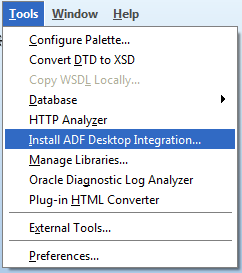 Note: The Install ADF Desktop Integration menu option is available only on the Windows installation of JDeveloper.
 - Follow the instructions that appear in the dialog boxes to successfully install the required componentsIf you encounter an error during the installation process, ensure that you have removed the previous version of ADF Desktop Integration.
- If prompted, click Yes to restart the system and complete the setup of ADF Desktop Integration
setup.exe available in the MW_HOME\jdeveloper\adfdi\bin\excel\addin\designerdirectory.

This is love, thanks for the share. Also, visit our website if you are looking for assistance with your nursing assignment:
ReplyDeleteNursing Assignment Help